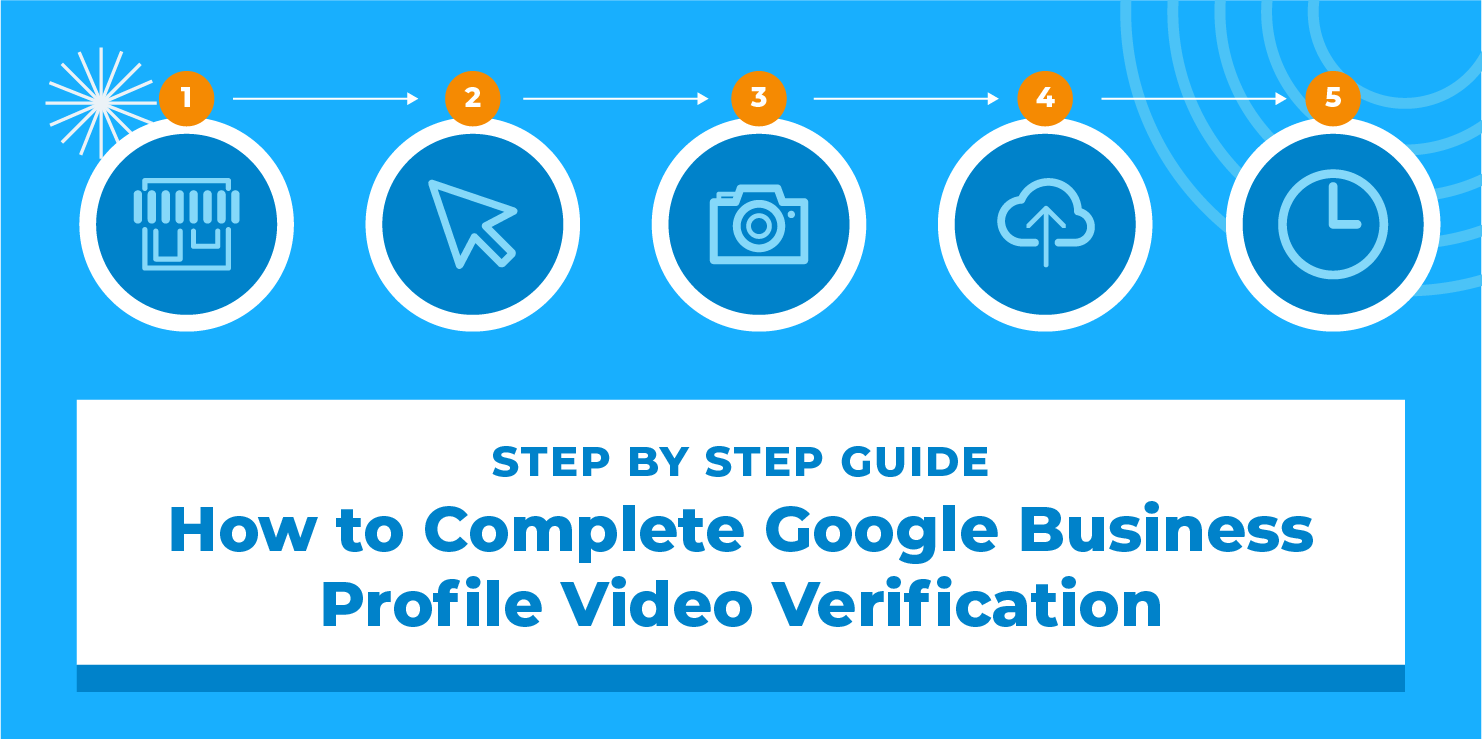
Google Business Profile video verification helps Google confirm that a business exists, operates at the stated location, and is managed by someone authorized to represent it. If Google requests video verification, you need to record genuine evidence that reflects your business type and matches the information on your profile.
Many business owners find this process challenging because the evidence requirements vary by business type. A retail shop may need to show permanent signage and access to its premises, while a service area business may need to demonstrate its work tools, equipment, and proof of operational control.
This guide explains how to complete Google Business Profile video verification, what to include in your recording, how to submit the video, and how to address common rejection issues. Following the recommended steps can help you provide clear and relevant evidence, although Google makes the final verification decision.
If you need assistance understanding your listing's verification requirements, explore our Google Business Profile video verification services.
1. What Is Google Business Profile Video Verification?
Google Business Profile video verification is a process that requires you to record a live video on a mobile device and submit it through your Business Profile. Google reviews the footage to assess whether the evidence supports your business details and confirms your connection to the business.
Unlike a promotional video, a verification recording is intended to establish authenticity rather than advertise your services. Google requires a unique, continuous recording without edits or interruptions. You cannot replace the requested live recording with a video that was filmed earlier and uploaded from your gallery.
Google may request video verification during initial profile verification or when additional confirmation is needed after certain changes. The available verification methods depend on Google's assessment of your business, location, profile details, and other relevant factors.
Eligible storefront businesses, service area businesses, and hybrid businesses may be asked to complete video verification. A hybrid business serves customers at its location and also visits or delivers to customers. An online only business without eligible in person customer contact does not qualify for a Business Profile simply because it operates a website.
If you need guidance on creating an eligible listing, our Google Business Profile setup guidance explains relevant profile requirements and business eligibility considerations.
2. Requirements Before You Start
Prepare your business location, recording equipment, and supporting evidence before opening the video verification screen. Planning the recording in advance helps you capture the necessary details in one uninterrupted take.
- A mobile device: Use a supported smartphone or mobile device to record and submit the video through your Business Profile.
- Access to your Google account: Sign in to the account that manages your profile or has the appropriate management permissions.
- Camera and location permissions: Allow the permissions requested during verification so the recording process can function correctly.
- A genuine business location or service operation: Make sure your footage accurately reflects how and where your business operates.
- Relevant business evidence: Prepare permanent signage, work equipment, products, professional tools, or access to restricted business areas according to your business type.
- A planned recording route: Decide what to show before recording so you can capture the required evidence without stopping or editing the footage.
Google's published guidance requires a verification video to be at least 30 seconds long. The recording must be unique, continuous, unedited, and captured live through the Business Profile verification process. Always follow any additional instructions displayed during your own verification attempt.
Protect confidential information throughout the recording. Keep bank account details, tax identification numbers, personal identification numbers, and private records out of view. Avoid recording other people's faces without permission. If you need to show a business document, frame it so the relevant business details are visible without revealing unnecessary sensitive information.
Before recording, check that your business name, address or service area, and business category accurately reflect your actual operations. If your listing contains incorrect information, correct it through Google's available editing options rather than attempting to hide inconsistencies in the video.
For practical guidance on keeping your listing accurate and complete, explore our Google Business Profile optimization services.
3. Identify Your Business Type
The evidence needed for verification depends on how your business serves customers. Identify the appropriate business type before recording and prepare evidence that reflects your real operations.
Storefront business
A storefront business welcomes customers at a physical location during its stated business hours and displays permanent signage at that location. Examples include grocery stores, restaurants, retail shops, and eligible customer facing offices.
Your recording should establish the surrounding location, show the business exterior and permanent signage, and demonstrate that you have authorized access to the premises or business operations.
Service area business
A service area business travels to customers or provides services at their locations instead of serving customers at its own business address. Examples include plumbers, electricians, mobile repair professionals, and other eligible service providers.
If customers do not visit your business address, Google requires you to hide that address from public view on your Business Profile. Your recording can show nearby location identifiers, professional tools, work equipment, branded materials, and genuine evidence of your authority to manage the business.
Hybrid business
A hybrid business serves customers at its premises and also travels to customers or delivers products to them. An eligible restaurant with dine in facilities and a delivery service is one example.
Prepare evidence showing the physical business location, permanent signage, genuine operations, and authorized management access. Your recording should accurately represent the premises and the way your business serves customers.
Do not select a storefront business type simply because you use a residential address, virtual office, or rented mailbox. Your profile must represent a genuine, eligible business. If you need help improving local visibility while maintaining accurate business details, explore our local SEO services and review Google's eligibility requirements.
4. How to Record a Storefront Business Verification Video
If customers visit your business premises, plan a continuous recording that clearly establishes your location, demonstrates that the business exists, and shows that you have authority to manage it.
Step 1: Start outside the business
Begin by recording the surrounding street or neighbourhood. Capture recognizable location details such as street signs, building numbers, nearby businesses, or landmarks. These details help connect your business to the location listed on your profile.
Step 2: Show the business exterior
Move toward the entrance and record the storefront or office. Capture permanent signage displaying the business name that matches your Google Business Profile. Small, unclear, temporary, or obstructed signs may make it harder for Google to identify your business and confirm its location.
Step 3: Enter the premises
Where appropriate, record yourself unlocking the door or opening the shutter with your key. This can help establish that you have authorized access to the premises. Keep the camera steady and ensure the relevant evidence remains visible throughout the recording.
Step 4: Show the inside of the business
Record the customer area, products, inventory, equipment, or workspaces that reflect your actual operations. A grocery store might show stocked shelves, a checkout counter, and products for sale. A restaurant might show its dining area, kitchen, or relevant food preparation equipment.
Step 5: Demonstrate management access
Show relevant evidence of your authority to manage the business, such as accessing a cash register, operating a point of sale system, entering a staff only area, or opening a storage room. Only access and record areas or systems you are authorized to use.
Keep the entire recording continuous, moving from the surrounding location to the business evidence without interruptions. Do not pause the video, combine separate clips, add transitions, or insert previously recorded footage. Google needs to review the evidence as one complete recording.
Once verification is complete, you can further improve your listing's local search presence through our Google Business Profile ranking services, which cover relevant profile visibility and optimization strategies.
5. How to Record a Service Area Business Verification Video
Service area businesses often operate without a customer facing storefront. This does not automatically prevent an eligible business from verifying its profile. Your recording should provide genuine evidence of the business location, the services you perform, and your authority to manage the operation.
Show the surrounding location
Start with street signs, nearby landmarks, building numbers, or other recognizable details that establish the location. If you operate from your home, show appropriate nearby identifiers without exposing unnecessary residential details or the private information of other people.
Show your work equipment
Record the professional tools, products, machinery, or equipment you use to deliver your services. For example, a plumber can show plumbing tools, while a mobile repair professional can demonstrate relevant equipment and supplies. Every item should make sense for the services described on your Business Profile.
Show business related materials
Where available, include genuine business cards, branded clothing, work vehicles, or other materials that support your business identity. These items can strengthen the evidence, but they should reflect your real operation rather than create the impression of a permanent storefront that does not exist.
Demonstrate control of the operation
Show yourself accessing a work vehicle, opening a storage area, using professional equipment, or preparing for a genuine service task. You may also show an appropriate business permit, invoice, or utility bill that supports your business identity. Keep confidential financial and personal information outside the camera frame.
A service area business should never misrepresent itself as a customer facing shop. Your recording must reflect the way the business genuinely operates. If you also serve customers at your premises, check whether a hybrid profile better describes your business model.
For further guidance on improving local visibility and reaching customers through Google Maps, explore our Google Maps SEO services and local search marketing services.
6. How to Start Video Verification on Google
After preparing your evidence, begin verification through your actual Business Profile. Google may update its interface over time, so button names and navigation steps can vary slightly.
- Open your Business Profile: On your mobile device, sign in to the Google account associated with the business and open your profile through Google Search or the available Business Profile interface.
- Select Get verified: Tap the verification prompt displayed on your profile. If Google asks you to confirm additional information first, follow the instructions provided.
- Choose Business video: Select this option if Google offers it as an available verification method for your business.
- Review the instructions: Read the requirements shown for your profile and prepare to capture the requested evidence.
- Allow the required permissions: Grant the requested camera, microphone, and location permissions on your device.
- Begin recording: Follow the on screen prompts and select Start recording when the option appears.
- Capture your evidence: Record your location, business operations, and management proof according to your business type.
- Finish and review: Stop recording after capturing the required evidence. If the footage is incomplete or unclear, use Try again when available.
- Submit your video: Select Upload video and wait for the submission process to finish before leaving the verification screen.
Follow the latest instructions in Google's official guide: Verify your business with a video recording.
Google decides which verification methods are available for each business. You may not be able to select video verification or switch to another method if Google has not offered that option on your profile.
If your listing has setup or access issues before verification, our Google Business Profile management services explain how to manage listing details and account permissions.
7. Video Verification Checklist Before Uploading
Check your recording carefully before submission. This checklist helps you confirm that the essential evidence is included before you upload your video.
- The video was recorded live through the Business Profile verification process.
- The footage is one continuous recording without edits or interruptions.
- The recording meets Google's minimum duration requirement of 30 seconds.
- The location evidence accurately represents the business premises or service operation.
- Permanent business signage is clearly visible when required for a storefront or hybrid business.
- The tools, products, equipment, or workspace reflect the actual business activities.
- The recording demonstrates your authority to manage or represent the business.
- The camera captures the required details clearly without excessive movement.
- Bank account details, tax identification numbers, and other confidential information remain out of view.
- Other people's faces and unnecessary personal details are excluded.
- The recording has been reviewed before submission.
Clear and relevant evidence is more useful than a lengthy video filled with unrelated details. Plan a natural recording route that moves from the surrounding location to the business premises and then shows evidence of your management authority.
Never create false signage, use another person's access credentials, or display equipment that does not belong to or support your actual business. Your verification recording must accurately represent your operations.
If you need to identify inconsistencies in your business listing and website, our Google Business Profile audit services can help you review important profile details.
8. How Long Does Google Video Verification Take?
After you submit your recording, Google reviews the evidence provided. Google's official guidance states that reviewing a submitted Business Profile verification video can take up to five business days. The actual processing time may vary depending on the profile and review circumstances.
While waiting, monitor the verification status displayed in your Business Profile. Avoid unnecessary changes to important business information or repeated verification attempts while your existing submission is under review.
If Google approves the recording, your profile will receive verification confirmation. If the submission is unsuccessful, Google may provide feedback about missing or insufficient evidence and allow you to record and submit another video.
If your profile remains unverified after the expected review period, check for status updates and follow the available support instructions. A delay does not automatically mean your profile has been suspended or permanently rejected.
Once your profile is verified, you can explore our Google Maps SEO services to learn about improving local search visibility. Verification establishes your eligibility to manage a profile but does not guarantee a specific position in Google Maps or local search results.
9. What to Do If Google Rejects Your Video
A rejected verification video does not automatically mean your business is inauthentic or permanently ineligible. It means the submitted evidence did not satisfy Google's requirements for that verification attempt. Review any available feedback before preparing another recording.
Step 1: Review the verification issues
Open your Business Profile on a mobile device and select Review issues if that option is available. Read Google's feedback carefully to understand which part of your recording needs attention.
Step 2: Identify the missing evidence
Common problems include unclear storefront signage, insufficient location details, or inadequate proof that the person recording has authority to manage the business. Focus on correcting the specific issue instead of submitting essentially the same video again.
Step 3: Plan another continuous recording
Organize all required evidence before recording again. If the location was unclear, capture more recognizable street signs or nearby landmarks. If signage was missing, record the permanent business sign. If management evidence was insufficient, demonstrate genuine access or authorized control of business resources.
Step 4: Record and submit a new video
Include the essential evidence from your earlier recording and address the missing details identified in Google's feedback. Keep the new video live, unedited, and continuous, then submit it through the official Business Profile verification process.
Do not fabricate evidence to overcome a rejection. If your actual business setup does not match the listing, correct the relevant profile details where appropriate and review Google's eligibility requirements before submitting another recording.
If Google has suspended or disabled your profile rather than simply rejecting the video, a different process may be required. Our Google Business Profile suspension recovery services explain the options available for addressing suspension related problems.
10. Common Video Verification Mistakes to Avoid
You can reduce common verification problems by planning your recording around Google's evidence requirements rather than filming without a clear purpose. Avoid these frequent mistakes when preparing your submission.
Recording only the storefront
A recording that shows only the building or business sign may not establish that the business operates there or that you manage it. Include relevant operational evidence and authorized access where appropriate.
Leaving out the surrounding location
Google needs sufficient context to connect the business to the location listed on the profile. Record nearby street signs, building numbers, or recognizable landmarks instead of focusing exclusively on the entrance.
Using temporary or mismatched signage
For storefront and hybrid businesses, permanent signage should clearly display the business name and match the name on the profile. Temporary signs or substantial name differences may make verification more difficult.
Submitting edited or prerecorded footage
Google requires a live, continuous, unedited recording through the Business Profile verification process. Avoid previously recorded clips, combined footage, added captions, or edited transitions that do not meet the recording requirements.
Showing unrelated equipment
The tools, products, and workspaces in your video should correspond to the services or products your business genuinely provides. Unrelated items do little to establish the nature and legitimacy of your operation.
Exposing confidential information
Keep bank account details, tax identification numbers, personal identification numbers, and other sensitive records out of the recording. Avoid unnecessarily filming other people's faces or private spaces.
Making repeated changes to important details
Confirm that your profile accurately represents your business before beginning verification. If the business name, address, or category is incorrect, resolve the underlying issue through the appropriate process rather than trying to work around it in the recording.
Businesses that want consistent information across online directories can also explore our local citation building services for support with broader local SEO management.
11. What to Do After Verification
After Google confirms your Business Profile is verified, review the listing to ensure all public business information is accurate. Verification is an important milestone, but it does not automatically optimize your profile or guarantee higher local search rankings.
Review your business information
Check your business name, phone number, website, opening hours, address or service area, category, and listed services. Make sure the information accurately reflects your operations and follows Google's guidelines.
Complete your profile details
Add relevant business information, high quality photos, products or services where appropriate, and accurate opening hours. Avoid unsupported claims, misleading categories, or locations where your business does not genuinely operate.
Manage customer reviews professionally
Respond to customer reviews in a helpful and professional manner, and keep your contact information current. If a review violates Google's policies, use the official reporting process rather than attempting to remove or replace your Business Profile.
Maintain consistent business information
Keep your business name, address, and phone number consistent across relevant directories and your website. If you manage multiple eligible locations, maintain each profile accurately and avoid creating unnecessary duplicate listings.
For ongoing listing support, explore our Google Business Profile management services and local SEO services for small businesses.
12. Frequently Asked Questions
How do I do Google Business Profile video verification?
Open your Business Profile on a mobile device, select Get verified, and choose Business video if Google offers this option. Follow the on screen instructions to record a live, continuous video showing your business location, actual operations, and evidence of your management authority. Review the footage and submit it directly through your profile.
How long should a Google Business Profile verification video be?
Google's published requirements state that the verification video must be at least 30 seconds long. It must be a unique, complete recording without edits or interruptions. Capture the relevant business evidence clearly and follow the specific instructions displayed during your verification process.
Can I record my verification video in advance?
No. Google requires you to capture the video live through the Business Profile verification process. Previously recorded footage, edited clips, or videos combined from separate recordings do not meet the stated requirements for live video verification.
What should I show in a storefront verification video?
Record the surrounding location, including recognizable street signs or nearby landmarks, followed by the storefront and permanent signage displaying your business name. Also demonstrate your management authority where appropriate by unlocking the premises, accessing a cash register, entering an authorized staff area, or using a point of sale system.
How can a service area business verify without a shop?
An eligible service area business can show nearby location identifiers, professional tools, work equipment, and genuine evidence of management authority. Depending on your operations, this may include a work vehicle, branded business materials, or relevant documents supporting your business identity. Your recording must reflect your actual operations rather than suggesting that you have a customer facing storefront when you do not.
How long does Google take to review a verification video?
Google's official guidance states that reviewing a submitted verification video can take up to five business days. Monitor the status displayed in your Business Profile and follow any instructions provided if the submission is unsuccessful or further evidence is requested.
Why did Google reject my verification video?
Your recording may have lacked clear location evidence, permanent business signage, proof of genuine operations, or evidence that you are authorized to manage the business. Open Review issues on your profile if available, examine Google's feedback, and submit a new live recording that addresses the missing information.
Can I verify my Google Business Profile from a computer?
Google requires video verification footage to be recorded and submitted through the supported mobile verification process. You may be able to begin managing your profile on a computer, but Google can direct you to continue verification on a mobile device. Follow the instructions displayed for your account.
Can an online only business complete video verification?
An online only business without eligible in person customer contact or a qualifying business location generally does not qualify for a Google Business Profile. Having a website or virtual storefront alone does not establish eligibility. Review Google's official business eligibility guidelines before creating or verifying a profile.
What happens if my verification video will not upload?
Check your internet connection, confirm that the required device permissions are enabled, and retry the upload through your Business Profile. If the issue continues, review Google's troubleshooting instructions and select another verification method only if Google makes that option available for your business.
Important: Google determines which verification methods are available and makes the final decision on every submission. Requirements and interface labels may change over time. Always follow the instructions displayed in your Business Profile and consult Google's official help documentation for current verification requirements.