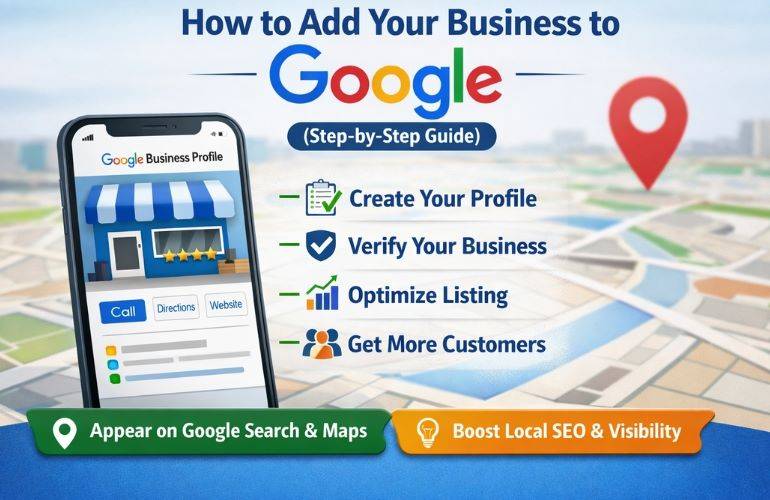
Adding your business to Google is a practical step toward helping potential customers find your company online. A Google Business Profile can show your business details on Google Search and Google Maps, helping people locate your business, contact your team, check opening hours, and explore the products or services you provide.
Whether you run a retail store, restaurant, repair service, salon, professional office, or another eligible local business, you can create a profile for free. However, creating a listing is just the first step. You also need to submit accurate details, complete Google's verification process, and keep your profile updated so customers can access dependable information.
This guide covers how to add your business to Google, which details to prepare, how profile verification works, and what to do when your business already appears on Google Maps. You will also discover ways to avoid setup errors and improve your profile once it becomes available.
1. What Is a Google Business Profile?
A Google Business Profile is a free tool that helps eligible businesses control how their information appears on Google Search and Google Maps. It allows potential customers to find essential business details before visiting your website or contacting your team.
Based on your business category and available profile features, customers may see your address, phone number, website, opening hours, photos, reviews, services, products, and other relevant details.
For instance, someone searching for a bakery in their area may discover nearby bakeries through Google Maps. Someone looking for a plumber can explore local providers, review their business information, and contact a suitable company. A complete and reliable profile helps people compare options and decide which business best meets their needs.
How a Business Profile helps your business
- Local discovery: Eligible businesses may appear in relevant Google Search and Maps results.
- Customer contact: Visitors can use your available contact information to reach your team.
- Business information: You can update essential details, including opening hours, services, and location.
- Customer confidence: Authentic photos, reliable details, and helpful review responses give people a clearer view of your business.
- Performance insights: Available profile reports can show how customers find and interact with your listing.
A Business Profile serves a different purpose from a website. Your website explains your company in greater detail, while your profile helps people discover and contact you through Google. Combining both can strengthen your local SEO services strategy.
2. Check Whether Your Business Is Eligible
Before setting up a profile, make sure your business follows Google's eligibility rules. A Business Profile is designed for eligible businesses that interact with customers in person during their stated operating hours. This includes businesses that receive customers at their premises and service providers who visit customers to complete their work.
Not every eligible business needs a storefront. For instance, plumbers, electricians, cleaners, and other mobile service providers may qualify when they travel to customers. Businesses that welcome customers at their premises and also provide services at customer locations may qualify as well.
Examples of potentially eligible businesses
- Retail outlets and shops that customers can visit.
- Restaurants, cafes, salons, and local repair services.
- Professional offices that satisfy Google's eligibility rules.
- Service businesses that travel to customer locations.
- Businesses serving customers at their premises and other locations.
Businesses that may not qualify
Online-only companies without eligible in-person customer contact generally cannot create a Google Business Profile. A virtual office or mailing address alone does not establish eligibility. Businesses using coworking spaces must satisfy Google's location requirements, including having a genuine business presence and meeting the applicable conditions for customer visits during stated operating hours.
Check the official Google Business Profile eligibility guidelines before creating your listing. Selecting the appropriate business type early can help prevent address-related issues and avoidable verification delays.
3. Prepare Your Business Information
Collect your business details before visiting the setup page. Preparing accurate information in advance simplifies registration and reduces inconsistencies that may cause confusion during the verification process.
Keep the following details ready when they apply to your business:
- Business name: Your real business name, matching your signage, branding, and customer-facing materials.
- Primary category: The category that best represents your main business activity.
- Business address: Your genuine eligible location when customers visit your premises.
- Service areas: The locations you actually cover when travelling to customers.
- Phone number: An active contact number customers can use to reach your business.
- Website: Your official business website, if available.
- Business hours: Your actual operating hours when customers can access your services.
- Business description: A straightforward and accurate summary of your products or services.
- Photographs: Authentic images of your premises, staff, products, or completed projects, where relevant.
Google may not request every detail during the first setup. You can add or revise some information after creating your profile. Provide the details Google asks for and do not guess when a field requires precise business information.
Keep your business name, address, phone number, and website accurate and consistent across online platforms. Consistent details help customers recognise your company and build a dependable local presence. If you want to find listing issues before launch, a Google Business Profile audit can highlight inconsistencies and practical improvements.
4. Sign In to Your Google Account
Start with a Google account that you own or can access securely whenever needed. Ideally, use an account controlled by the business owner or an authorised team member responsible for managing the listing.
- Open a web browser of your choice.
- Go to business.google.com/add.
- Sign in to your Google account if requested.
- Select the option to add your business to Google.
- Complete the on screen instructions.
Choose an account the business can retain if a staff member leaves or a marketing partner changes. Never share your password with outside providers. If someone needs to help manage the listing, use Google's available access permissions instead of handing over your personal account credentials.
If you manage several business locations, organise account permissions and listing details carefully. Each profile must represent a genuine business location, with information that accurately describes the business operating there. Companies managing multiple locations can benefit from a coordinated Google business listing management service.
5. Enter Your Business Name
Enter your business's genuine name when Google requests it. Use the name customers know from your storefront, business signage, established branding, and other authentic business materials.
Before creating a profile, check whether a listing already exists for your business. Search your business name and location on Google Search or Google Maps. A customer, former owner, employee, or another person may have created a profile previously.
If an accurate profile already appears, avoid creating another listing just because you cannot access it. Follow Google's process to claim the existing profile or request ownership from its current manager. Duplicate listings may confuse customers and cause profile management or visibility issues.
Should you add keywords to your business name?
Use your genuine business name without adding extra locations, service phrases, promotional claims, or search keywords that are not part of its established name. For example, do not rename your company just to include phrases such as “best plumber near me” or “affordable services in your city.”
Google's business name guidelines require an accurate representation of your real business identity. Unnecessary keyword additions may trigger changes or other listing issues. Improve relevance by selecting a suitable category, explaining your services clearly, and keeping your profile information complete.
If your listing shows an incorrect name or unexpected changes, review your profile details and consider professional Google Business Profile optimization support.
6. Choose the Correct Business Category
Your primary category explains the main activity of your business to Google. It helps identify what your company offers and provides useful context for relevant customer searches.
Choose the category that most closely matches your core business activity. For example, a shop mainly selling flowers should select a suitable florist category rather than an unrelated retail option. A company offering plumbing services should choose the relevant plumbing category instead of adding broad categories to target every possible search.
Tips for selecting categories
- Select the most accurate available option from Google's category list.
- Choose your main business activity as the primary category.
- Add secondary categories only for services your business genuinely provides.
- Avoid categories that do not match your actual business operations.
- Update your categories when your core business activities change.
Categories should reflect your actual business activity rather than serve as a collection of search terms. Choose the option that gives customers the clearest idea of what your company offers.
After choosing a category, check that your services, description, and website reflect the same business purpose. A structured Google Business Profile optimization service can help uncover missing information and strengthen the accuracy of your listing.
7. Add Your Address or Service Area
Google requests location details based on the way your business serves its customers. Your setup will depend on whether people visit your premises, you travel to their locations, or your business offers both arrangements.
Businesses with a customer-facing location
If customers visit your shop, office, clinic, or another eligible location, provide the full and accurate address requested by Google. Add relevant details such as the street, building, suite, or unit number when applicable. Follow the map instructions to identify your business location correctly.
Avoid choosing an address simply because it is convenient or appears more visible on a map. Your location must comply with Google's rules and accurately reflect where your business operates.
Service-area businesses
If you visit customers and do not receive them at your business address, you may need to configure your profile as a service-area business and hide the address from public view. You can then enter the areas you genuinely cover using Google's permitted options and guidelines.
For example, a repair company that works at customers' homes should not display a private residence as a customer-facing storefront when customers cannot visit that address. Instead, select the service-area setup that matches the way the business operates.
Businesses that serve customers in both ways
A business that welcomes customers at its premises and also travels to provide services may be eligible to show its location and service area. Select the settings that correctly explain how customers access your business.
For further details, read Google's business representation guidelines and address management instructions. Reliable location details also support an effective Google Maps SEO strategy.
8. Add Your Contact Details and Website
Enter the contact information customers need to connect with your business. Depending on your business type and available profile fields, this may include a telephone number, website, and other relevant contact options or action links.
Choose a phone number your business controls and can answer during its advertised hours. If you provide a website, link to the official site that represents your company. Check each URL to ensure visitors are not directed to an unrelated page or an inactive link.
Your website should support the information displayed on your profile. Check that your business name, relevant location details, telephone number, services, and operating hours are correct. If your website includes a dedicated location page, ensure it clearly describes that branch and the services available there.
Adding a website does not verify your profile automatically, promise higher rankings, or ensure that Google displays every submitted detail. Google evaluates and processes profile information under its own systems and policies.
After entering your contact details, check that customers can read and use them easily on mobile devices. Many people use phones to request directions or contact local companies, making clear and accessible information essential. Businesses seeking stronger local visibility can use Google search optimization services as part of a wider strategy.
9. Verify Your Business on Google
Verification helps Google establish that you are authorised to manage the business profile. Google selects the available verification methods according to factors such as your business, location, account, and other circumstances. You may not have the option to select your preferred method.
Use the verification instructions displayed in your Google account. Available options differ between businesses, so do not expect every listing to offer a phone call, text, email, postcard, or video verification method.
Common verification methods
- Video verification: Google may request a recording showing relevant evidence of your business location, operations, or authority to manage the profile.
- Phone or text: When offered, complete the steps using the contact number and instructions provided by Google.
- Email: If available, follow the verification instructions delivered to the eligible email address.
- Mail: If Google offers postal verification, follow the stated procedure and wait for the verification materials to arrive.
- Other methods: Additional verification options may be available depending on your business circumstances.
For video verification, submit authentic evidence that reflects your business operations. Depending on Google's instructions, this may include nearby street signs, permanent signage, business equipment, work areas, or evidence of your management responsibilities. Show the requested details without exposing unnecessary private information.
Never create false evidence, provide misleading information, or disclose verification codes to unauthorised people. If verification is unsuccessful, review the message in your account and correct the identified issue before submitting another attempt.
For further instructions, consult the official Google Business Profile verification guide. If you require preparation assistance, consider Google Business Profile video verification support that follows Google's requirements.
10. Complete and Optimise Your Profile
After entering the required details and completing the available setup steps, review your profile to confirm that everything is accurate and complete. Getting verified and published is not the end of profile management, as your business information may need regular updates.
Complete the essential fields
- Verify that your business name matches your real-world identity.
- Check your primary category and relevant secondary categories.
- Confirm your address or service area configuration.
- Test your telephone number and website link.
- Set your regular opening hours and revise special hours when necessary.
- Provide a clear description of your business activities.
- Upload authentic photos that accurately represent your company.
- Review available services, products, and attributes that apply to your business.
Your description should clearly communicate your main products or services in natural language. Avoid keyword repetition, unverified claims, excessive sales wording, or details unrelated to your business. Choose authentic, relevant photos that help potential customers understand what to expect before contacting or visiting your company.
Keep the profile active and accurate
Check your profile frequently, particularly when your contact number, address, operating hours, services, or website changes. If your business closes temporarily or adjusts its schedule, update the details promptly to prevent unnecessary visits or calls when your team is unavailable.
Reply to customer reviews in a professional and genuine manner. Appreciate honest feedback, resolve concerns without revealing confidential details, and comply with Google's review policies. Do not purchase reviews or provide rewards in return for favourable ratings.
Share relevant updates and use available profile features when they provide useful information about your services, products, or announcements. A well maintained profile supports a better customer experience, although no optimisation method or profile edit guarantees a specific ranking position.
For regular upkeep, Google Business Listing Management Service can help organise important profile details. You can also review Google Business Profile ranking services to understand approaches to improving local search visibility.
11. Common Mistakes to Avoid
You can avoid many listing issues by checking your information carefully and following Google's requirements. Keep these frequent mistakes in mind when creating or maintaining your business profile.
Creating a duplicate profile
Look up your business before adding a new listing. When an eligible profile already exists, use the claiming or ownership request procedure instead of creating another one. If duplicate listings are present, follow Google's guidance to address them correctly.
Using an inaccurate business name
Avoid inserting extra keywords, marketing phrases, or location names unless they genuinely form part of your established business name. Choose relevant categories and explain your actual services to provide customers with useful information.
Entering an address that does not meet the rules
Provide a valid business location and select the appropriate storefront or service area settings. Do not use a virtual office, mailbox, or other address that fails to meet Google's eligibility and representation requirements.
Ignoring verification instructions
Complete the verification method displayed in your account. Ensure your information matches your actual business, prepare authentic supporting evidence, and review everything before submitting it. Trying repeatedly to use options Google has not provided will not solve verification problems.
Adding misleading information
Do not publish services, schedules, addresses, or professional qualifications that misrepresent your business. Inaccurate information can confuse potential customers and may result in profile edits or other listing complications.
Expecting instant rankings
Creating and verifying a profile does not ensure first place on Google Maps or visibility in every local search. Local results depend on factors such as relevance, distance, and prominence. Prioritise accurate information, helpful customer service, and legitimate local marketing instead of relying on guaranteed ranking promises.
If your business details differ across online directories, local citation building services can help you review and organise relevant listings. To explore ways to strengthen your local presence, consider local search marketing services as part of a planned strategy.
12. Frequently Asked Questions
1. How do I add my business to Google?
Go to business.google.com/add, sign in to your Google account, and follow the setup instructions. Enter your business name, category, address or service area, and any other requested information. Complete the verification option provided by Google.
2. Is it free to add my business to Google?
Yes. Eligible businesses can create or claim a Google Business Profile without paying a listing fee. Be careful with claims that payment to Google is necessary for a basic profile or guarantees higher rankings. Independent marketing providers may charge for their professional services.
3. How long does it take to add a business to Google?
Entering your business details may take a few minutes, while verification and review can require additional time. The process varies according to the available verification method, requested information, and any issues identified by Google. Check your account for current instructions instead of expecting a fixed completion time.
4. Can I add my business to Google without a physical storefront?
Yes, some businesses without a public storefront may qualify when they meet customers in person, including service providers who travel to customer locations. Online businesses without eligible in person customer contact generally do not qualify. Check Google's eligibility requirements before submitting your listing.
5. Can I add my business to Google Maps without verification?
Your business information might appear on Google Maps before you claim or verify the listing. However, managing the profile and controlling its details generally requires completing Google's verification process. The required steps depend on your business and the methods available in your account.
6. What should I do if my business is already on Google Maps?
Find your business using Google Search or Maps. If an existing listing represents your company, follow Google's claiming process or request ownership when someone else manages it. Avoid creating a second profile for the same business location unless Google's guidelines allow a separate listing.
7. Can I add my business to Google using my phone?
Yes. A mobile browser can be used to open the Google Business Profile setup page. Google Search and Google Maps may also offer profile management features depending on your device and account. Follow the available instructions to complete the process.
8. Why is Google not accepting my business address?
Google may reject an address because information is missing, the map pin is misplaced, the location cannot be identified, or the address does not follow its guidelines. Check your details, include valid building or unit information, and adjust the map pin when that option is available. Never submit an unrelated address to avoid the restriction.
9. Will adding my business to Google improve my rankings immediately?
No. A Business Profile can help eligible customers find your company, but it does not promise immediate visibility or top positions for every search. Keep your information accurate, maintain the listing, encourage genuine customer feedback, and build a relevant website and local SEO strategy.
10. What should I do after my business is verified?
Check your listing details, upload authentic photos, confirm your opening hours, complete relevant service information, and monitor customer reviews. Update your profile whenever business details change. You can also assess available performance insights and refine your website and local marketing efforts regularly.
Disclaimer: Google Business Profile features, eligibility rules, and verification methods may change. Follow the instructions in your Google account and check official Google documentation for current requirements.
Final Thoughts
Adding your business to Google helps establish your presence on Google Search and Maps. Begin by confirming eligibility, checking for an existing listing, and gathering accurate business details. Next, create or claim the correct profile, set your address or service area appropriately, and complete the verification process required by Google.
After your profile becomes available, maintain accurate information and help customers understand your services. Authentic photos, updated opening hours, clear service details, and thoughtful review responses support a positive customer experience. Pair these practices with a helpful website and a consistent local SEO strategy to develop your online presence over time.
For further assistance, explore our Google verified business listing service, review Google Business Profile suspension recovery if your listing is restricted, and discover our Google review management services for maintaining a professional approach to customer feedback.
Businesses looking to strengthen local visibility can explore our Google Business Profile optimization services to identify gaps in profile completeness and information consistency. Follow Google's policies, keep business details accurate, and build customer trust through authentic business practices.